
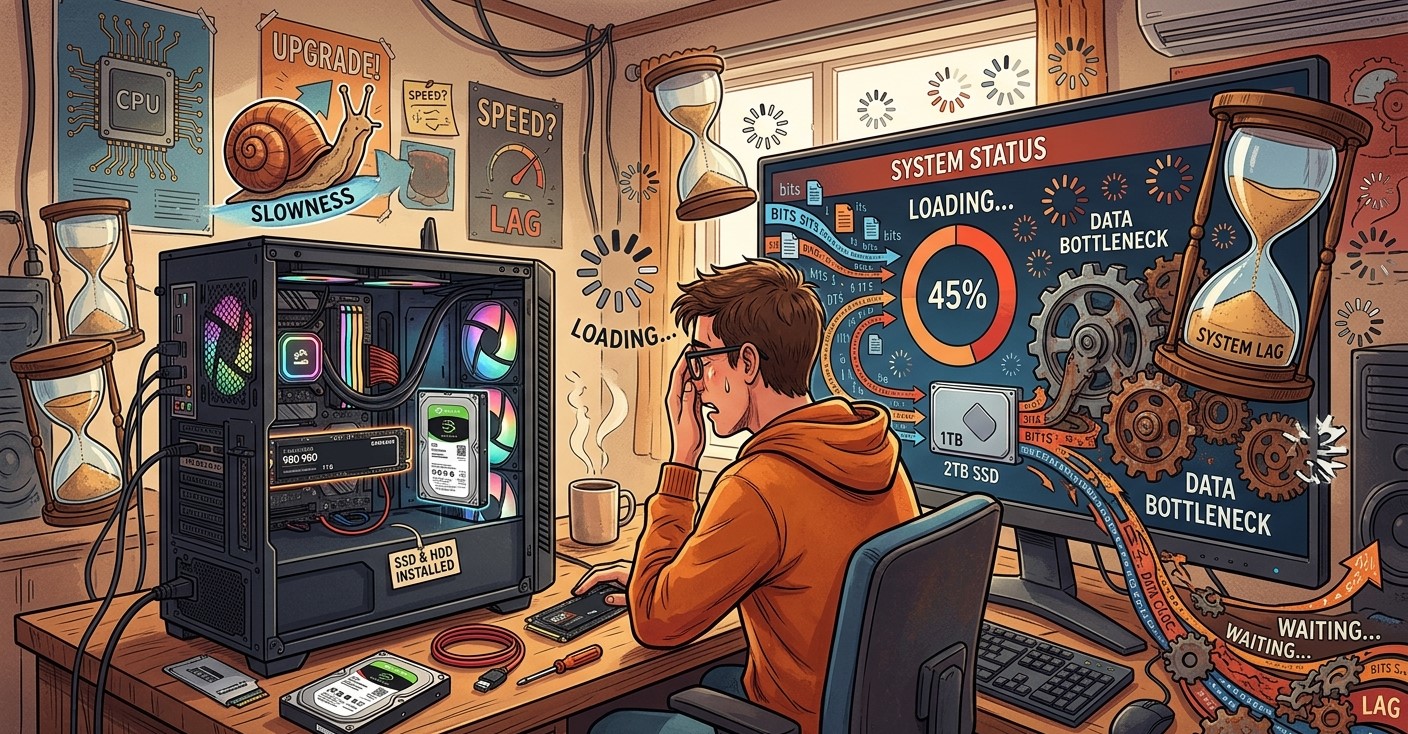
Upgrading a computer’s storage is often expected to improve performance, especially when replacing an older hard disk drive with a faster SSD. However, some users notice that their computer becomes slow, freezes, or takes longer to open applications after installing a new storage drive. When this happens, the storage upgrade itself may not be the actual problem. Incorrect installation, software configuration, outdated drivers, insufficient free space, or other hardware limitations can affect performance.
Understanding why a computer becomes slow after a storage upgrade can help you identify the problem before making unnecessary changes. If you recently installed a new SSD or hard drive and your computer is not performing as expected, professional computer repair Albany NY services can help diagnose the issue and verify that the new storage device is configured correctly.
The New Storage Drive May Not Be Configured Correctly
One of the first things to check after a storage upgrade is whether the new drive has been installed and configured properly.
For example, an SSD may support faster transfer speeds, but the computer may not be using it at its full potential because of an incorrect BIOS configuration, outdated storage drivers, or an unsuitable connection.
Some systems require specific BIOS settings for certain storage interfaces. If the new drive is not recognized correctly or is operating in an unexpected mode, performance may be lower than anticipated.
Checking the manufacturer's specifications and motherboard documentation can help determine whether the storage drive is installed correctly. If you are unsure about BIOS or storage settings, professional assistance is safer than changing unfamiliar options.
The Operating System May Still Be Running From the Old Drive
Installing a new storage drive does not automatically mean Windows is running from it.
If you added a new SSD while keeping the original hard drive, Windows may still be installed and running from the older drive. In that situation, applications and system processes continue relying on the slower storage device.
Open Windows Disk Management to identify the drives connected to your computer and determine where the operating system is installed. If the goal of the upgrade was to move Windows to an SSD, the operating system may need to be cloned or clean-installed on the new drive.
Before making changes to partitions or reinstalling Windows, make sure important files are backed up.
Incorrect Drive Cloning Can Cause Problems
Many users clone their existing drive when upgrading to an SSD so they can keep Windows, applications, and personal files. While cloning can be convenient, the process must be completed correctly.
An improperly cloned operating system can result in:
Slow startup
Boot errors
Missing partitions
Incorrect drive alignment
Application problems
Unusual system behavior
If the cloning software creates an inefficient partition layout or the cloning process is interrupted, the new drive may not perform as expected.
If your computer became slow immediately after cloning, verify that the cloning process completed successfully and that Windows is actually booting from the new drive.
The New SSD May Be Nearly Full
Storage performance can decline when an SSD becomes heavily occupied. SSDs generally need available space to manage data efficiently, perform background maintenance, and distribute writes across memory cells.
If your new drive is already close to its maximum capacity, you may notice slower performance over time.
Check the available space on the drive and remove unnecessary files or applications. Large downloads, temporary files, old installers, videos, and duplicate files can consume storage quickly.
Keeping a reasonable amount of free space can help maintain consistent performance.
The Storage Interface May Limit Performance
Not every computer can take full advantage of every modern SSD.
For example, an NVMe SSD installed in a system with a slower interface may operate below its advertised maximum speed. Similarly, an SSD connected through a slower connection may not deliver the performance expected from its specifications.
This does not necessarily mean the drive is defective. The computer's motherboard, slot, interface, and chipset all influence storage performance.
Before purchasing an upgrade, it is important to verify compatibility with the computer.
Storage Drivers May Be Outdated
Drivers allow Windows to communicate correctly with hardware components. After installing a new storage device, outdated chipset or storage controller drivers can sometimes interfere with performance.
Check Windows Update for available updates and review the computer or motherboard manufacturer's official support resources for compatible chipset and storage drivers.
Avoid downloading drivers from unknown websites. Installing an incorrect driver can create additional instability.
If you are uncertain about which driver your system needs, a professional computer repair Albany NY technician can inspect the system and identify compatible updates.
Other Hardware May Be Limiting Performance
A storage upgrade can make certain operations faster, but it cannot eliminate every performance bottleneck.
For example, a computer with limited RAM may still freeze when multiple applications are open. An older processor may struggle with modern software even when Windows is installed on a fast SSD.
Similarly, overheating can cause the processor to reduce its speed, making the entire computer feel slow.
If the computer was already experiencing performance problems before the storage upgrade, replacing the drive may not address the underlying issue.
A complete hardware assessment can determine whether RAM, CPU performance, cooling, or another component is limiting the system.
Background Processes May Be Running After the Upgrade
A newly installed or cloned Windows system may perform several background tasks after an upgrade.
Windows may index files, install updates, optimize applications, scan for security threats, and synchronize cloud services. These activities can temporarily increase CPU, memory, or disk usage.
Open Task Manager to see whether a particular process is consuming excessive resources.
If the computer becomes slower only temporarily after the upgrade, allow background tasks to finish and restart the system. Persistent high resource usage, however, may indicate another issue.
The Storage Drive Could Be Faulty
Although modern SSDs and hard drives are generally reliable, hardware defects can occur.
A failing storage drive may produce symptoms such as:
Extremely slow file transfers
Application freezes
Unexpected errors
File corruption
System crashes
Startup problems
Disappearing files
If you notice these warning signs, back up important data as soon as possible. Avoid repeatedly stressing a drive that may be failing, particularly if it contains irreplaceable files.
Professional laptop repair Albany and computer repair technicians can test storage health and determine whether the drive is functioning correctly.
Firmware May Need an Update
Some SSD manufacturers release firmware updates to address compatibility issues, bugs, performance problems, or reliability concerns.
Before updating firmware, carefully check the manufacturer's instructions and confirm the exact drive model. Firmware updates should not be interrupted because an unsuccessful update can create additional problems.
If your new storage device is experiencing unusual performance issues, checking the manufacturer's support information may reveal whether a firmware update is available.
When Should You Contact a Professional?
If your computer remains slow after a storage upgrade, professional diagnostics may be appropriate. This is especially true when you are unsure whether the problem is caused by software configuration, hardware compatibility, or the storage device itself.
Professional technicians can check:
Drive health
Read and write performance
BIOS settings
Storage interfaces
Driver compatibility
Windows configuration
RAM usage
Processor performance
System temperatures
Rather than replacing additional components without knowing the cause, diagnostic testing can help identify the actual bottleneck.
Conclusion
A computer becoming slow after a storage upgrade does not necessarily mean the new drive is defective. The operating system may still be running from an older drive, the new storage device may be incorrectly configured, or the computer may have limitations involving RAM, processor performance, cooling, drivers, or storage interfaces.
Start by checking which drive contains Windows, verifying available storage space, reviewing Task Manager, installing appropriate system updates, and confirming that the new drive is compatible with your computer.
If performance remains poor, experienced computer repair Albany professionals can test the system and determine whether the issue involves the storage device or another component. For laptops, reliable laptop repair Albany specialists can also inspect installation, compatibility, cooling, and hardware health.
For users seeking dependable computer repair Albany NY services, professional diagnostics can help ensure that a storage upgrade delivers the performance improvement you expected without creating unnecessary hardware or software problems.
Comments
Log in or sign up to join the conversation.