
The world of AI image generation can feel overwhelming for beginners, with endless parameters, confusing terminology, and a seemingly infinite range of possibilities. Yet beneath this complexity lies a straightforward process that anyone can master with patient guidance. This step-by-step tutorial walks you through the entire journey of creating realistic AI images, from the first spark of an idea to the final polished result. Whether you have never generated an image before or have experimented with mixed success, this practical guide provides the structure and techniques needed to consistently produce photorealistic results. Think of this as your hands-on workshop, where each step builds upon the last, gradually transforming you from curious observer to confident creator. By the end, you will not only understand how to use an AI photo generator but also why certain approaches yield better results, empowering you to troubleshoot and experiment on your own.
Step One: Defining Your Vision Before You Type
The most critical step in creating stunning AI images happens before you ever open the generator. Taking time to clarify your vision dramatically improves your results by providing a solid foundation for prompt crafting. Begin by asking yourself fundamental questions about the image you want to create. What is the main subject—a person, an object, a landscape? What mood should the image convey—peaceful, dramatic, mysterious, joyful? What time of day is it, and what kind of lighting naturally occurs at that time? What colors dominate the scene? Is there action happening, or is it a still moment? Write down your answers in simple phrases. For a portrait, consider age, expression, clothing, and setting. For a product shot, think about angles, backgrounds, and how the item should be presented. This preparatory work transforms vague ideas into concrete visual concepts that translate effectively into prompts. Keep a notebook or digital document where you capture these vision details—over time, you will build a personal reference library of successful descriptive language.
Step Two: Crafting Your Foundation Prompt
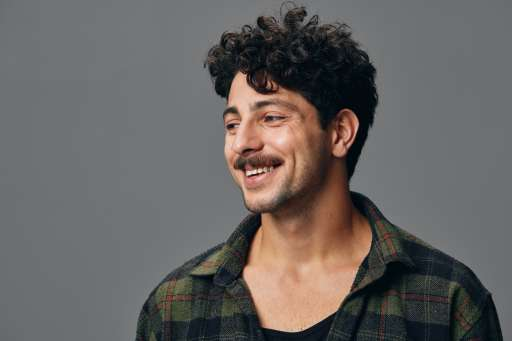
With your vision clarified, it is time to translate those mental images into the foundation prompt—the primary description that will guide the AI's generation. Start with the subject and its most important characteristics, then layer in additional details methodically. A well-structured prompt typically follows this pattern: subject, subject details, environment, lighting, composition, and technical quality indicators. For example, rather than "a dog in a park," build systematically: "a golden retriever puppy with floppy ears and big brown eyes, sitting on lush green grass, dappled sunlight filtering through oak trees, soft warm lighting, shallow depth of field, ultra-detailed, photorealistic." Notice how each element adds specificity that guides the AI toward your vision. Write your prompt in natural language without worrying about perfect grammar—these models understand everyday phrasing. Read your prompt aloud to ensure it flows and includes all the elements you identified in Step One. This foundation prompt becomes the starting point for all the refinement to come.
Step Three: Selecting Your Platform and Settings
Different AI photo generators excel at different types of images, and understanding their strengths helps you choose the right tool for your specific project. For this tutorial, we will assume you are using a general-purpose platform with photorealistic capabilities, but the principles apply across most generators. Once you have selected your platform, familiarize yourself with the basic settings available. Most offer controls for aspect ratio—choose dimensions that suit your subject, with portrait orientation for people, landscape for scenes, and square for social media posts. Some platforms offer style presets; for realism, select options labeled "photographic," "realistic," or avoid artistic presets entirely. Look for a quality setting and choose the highest available, understanding that higher quality may take slightly longer to generate. If your platform offers a "creativity" or "guidance scale" slider, start with default settings—typically around 7-9 on a 1-10 scale—which balances prompt adherence with creative interpretation. Save these settings as defaults for realistic work to maintain consistency across generations.
Step Four: Generating and Evaluating Your First Batch
With your prompt entered and settings configured, it is time to generate your first batch of images. Most platforms produce four variations simultaneously, giving you options to evaluate. When the images appear, resist the urge to immediately judge them as successes or failures. Instead, analyze each one systematically against your original vision. Which image comes closest to the mood you imagined? Which has the most believable lighting? Are there anatomical issues in any, particularly with hands or facial features? Does the composition feel balanced and intentional? Take notes on what works and what doesn't in each variation. You may find that Image A has perfect lighting but the wrong expression, while Image B captures the emotion but has awkward composition. This evaluation prepares you for the next step, where you will combine the best elements through refinement. Remember that even "failed" images provide valuable information about how the AI interpreted your prompt, teaching you what language works and what leads astray.
Step Five: Refining Through Iteration
Rarely does the first batch produce your final image—the real magic happens through iterative refinement. Based on your evaluation, craft a new prompt that builds on what worked and corrects what didn't. If the lighting was perfect but the subject's expression was wrong, keep the lighting description while adjusting the emotional direction. If the composition was off, add more specific framing instructions like "close-up portrait" or "full body shot with space above the head." Some platforms offer variation features that generate subtle differences of a promising image—use these to explore around a successful composition. If you are working with a platform that includes inpainting, you can refine further by selecting problematic areas and generating replacements with focused prompts. This iterative process might continue through several rounds, each bringing you closer to your vision. Document your prompt iterations so you can track what changes produced which effects, building your personal knowledge base for future projects.

Step Six: Advanced Techniques for Next-Level Realism
Once you have mastered basic iteration, several advanced techniques can push your images toward even greater realism. Negative prompting becomes increasingly valuable as you refine—explicitly telling the AI what to avoid, such as "blurry, low quality, distorted features, extra fingers, cartoon style, painting." Some platforms allow prompt weighting, where you add emphasis to crucial elements using syntax like (important detail:1.3) to increase their influence. Reference image features let you upload photographs that capture desired lighting, composition, or color palettes for the AI to emulate. For character consistency across multiple images, some platforms offer character reference modes where you upload several images of the same person and the AI learns their features. Experiment with these advanced features one at a time, observing how each affects your results. Keep a log of successful techniques and prompt structures that consistently produce the realism you seek.
Step Seven: Post-Processing and Final Polish
The final step in creating truly stunning realistic ai images involves post-processing work outside the generator. Even the best AI generations benefit from subtle adjustments in photo editing software. Begin by examining your image for minor imperfections—strange artifacts, inconsistent lighting, or areas where detail could be enhanced. Use basic editing tools to adjust contrast, color balance, and sharpness, bringing the image closer to professional photograph standards. Healing brushes can remove small artifacts or clean up backgrounds. If your image needs higher resolution for printing, use dedicated upscaling software that adds detail rather than simply stretching pixels. For compositing work, you might combine elements from multiple generations, placing the perfect subject from one image into the ideal background from another. These post-processing steps transform excellent AI generations into finished pieces ready for presentation. Save your work in appropriate formats—high-resolution TIFF or PNG for printing, optimized JPEG for web use—and organize your files with descriptive names that help you track prompts and settings for future reference.
Comments
Log in or sign up to join the conversation.