

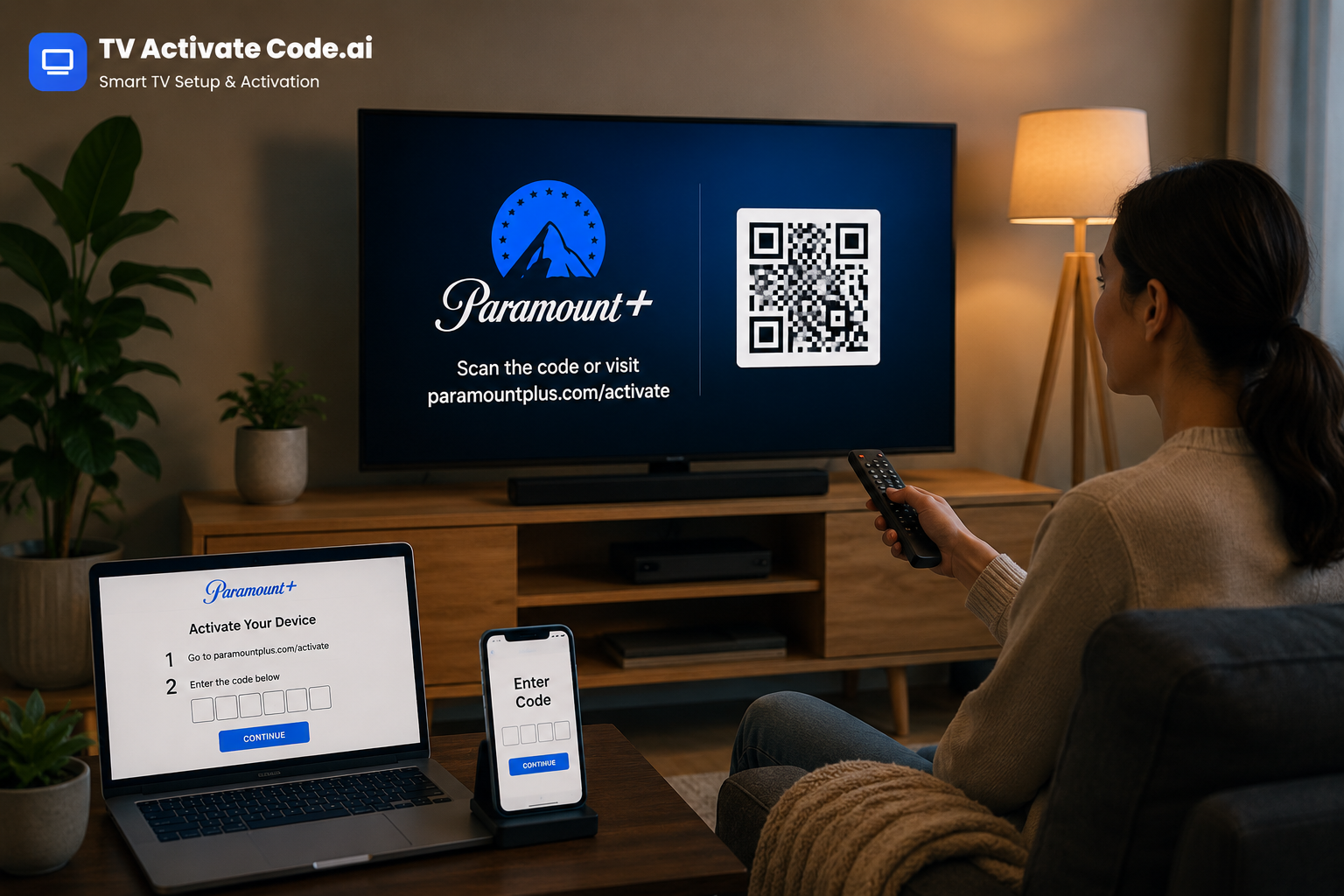
If you're trying to activate Paramount+ on your TV, the process is usually straightforward: open the Paramount+ app, display the activation code, and enter that code on Paramount+'s official activation page.
The confusing part is often knowing where the TV activate code comes from, where to enter it, or what to do when the code doesn't work.
This guide walks you through the process and the most common problems.
How Paramount Plus TV Activation Works
A TV activation code is a temporary code displayed by the Paramount+ app on your television or compatible streaming device.
Instead of typing your full account password with a remote, the activation process lets you connect the TV to your Paramount+ account using another device, such as a phone or computer.
Paramount+ provides device-specific activation pages, including pages for Android TV, Apple TV, Fire TV, Samsung TV and other supported devices.
How to Activate Paramount Plus on Your TV
1. Open the Paramount+ app
Start your smart TV or streaming device and open the Paramount+ app.
If you haven't installed it yet, find Paramount+ in your device's app store and install the official application.
2. Select Sign In or Activate
Look for an option such as Sign In, Activate, or a similar prompt.
The exact wording can vary depending on your TV or streaming device.
3. Find the TV activate code
After selecting the appropriate sign-in option, the TV may display an activation code.
Keep this screen open. You will need the code exactly as it appears.
4. Use the official Paramount+ activation page
On your phone, tablet, or computer, open Paramount+'s official TV activation page.
Enter the code shown on your television.
5. Sign in to your account
If requested, sign in with your Paramount+ account credentials and complete the prompts.
The activation process connects the device displaying the code with the account you're authorizing.
6. Return to your TV
After successful verification, return to the Paramount+ app.
In many cases, the TV updates automatically and displays the Paramount+ home screen. You can then select a profile and begin watching.
What If Your TV Activate Code Doesn't Work?
Don't immediately repeat the entire setup. First, identify what failed.
The code has expired
Activation codes are temporary. If the code is no longer accepted, return to the Paramount+ app and generate a new Tv activation code.
Use the newest code rather than repeatedly submitting an older one.
You entered the code incorrectly
Activation codes can contain characters that are easy to confuse.
Carefully compare every character on your TV with what you entered on the activation page.
The TV doesn't refresh
If activation appears successful but the TV remains on the code screen, give the app a moment to update.
If nothing happens:
Close Paramount+.
Reopen the app.
Check that the TV is connected to the internet.
Try generating a new activation code.
Repeat the activation process.
Your internet connection is unstable
The TV and the device you're using for activation both need reliable connectivity.
Try opening another app on the TV. If other streaming services are also having problems, restart your router and reconnect the TV before attempting activation again.
The Paramount+ app is outdated
An outdated application can cause unexpected sign-in or activation behavior.
Check your TV or streaming device for available app updates. If the device itself has pending software updates, installing them may also help.
TV Activate Help: A Safer Way to Troubleshoot
Need Tv Activate Help? Be careful when searching for activation instructions.
An activation code is associated with your device/account session, so don't enter it into an unfamiliar website simply because it appears in a search result.
For Paramount+, use the official Paramount+ activation page when entering the code. Also avoid sharing your Paramount+ password or activation information with people offering unofficial “activation services.”
If the problem continues after checking the code, internet connection, application, and account, the appropriate next step is Paramount+'s official support because device availability and account-related issues can require access to information an independent guide cannot see.
Quick Paramount Plus Activation Checklist
Before contacting support, check:
Paramount+ is installed on the TV.
You selected the correct sign-in/activation option.
The code on the TV is current.
You entered the code exactly as displayed.
Your Paramount+ account is active.
The TV has a stable internet connection.
The Paramount+ app is updated.
You're using Paramount+'s official activation page.
Paramount+ supports a broad range of platforms, so the exact activation experience can differ between devices.
Get More TV Activate Help
If Paramount+ activation is only the first problem you're trying to solve, explore related TV setup, activation-code, and streaming-device troubleshooting guides on Tv Activate Code for practical help with the next step.
Disclaimer
Tv Activate Code is an independent help website that provides setup and troubleshooting guides. We are not affiliated with, endorsed by, or sponsored by any brand, service, or device manufacturer mentioned in this article.
Comments
Log in or sign up to join the conversation.