

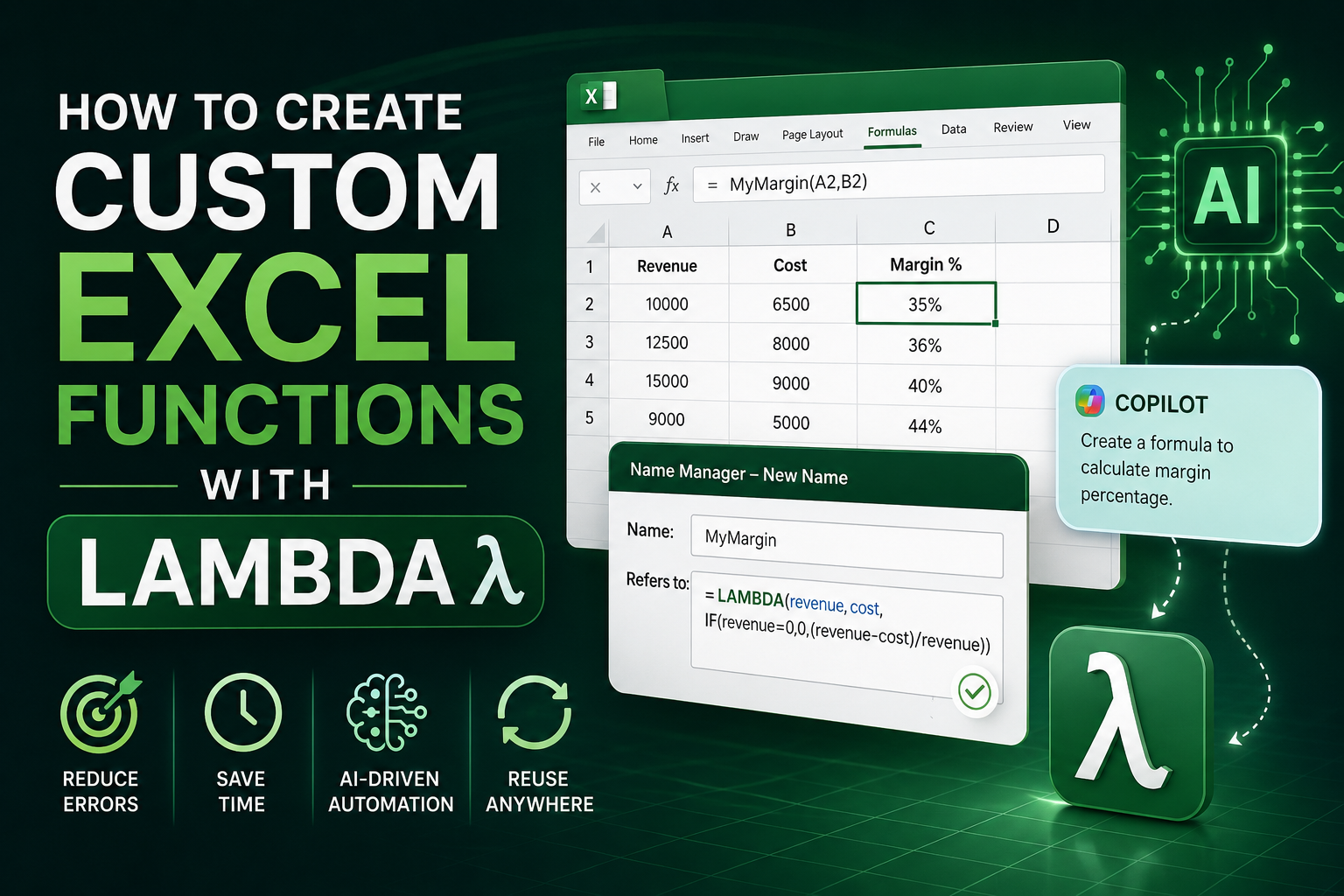
Artificial intelligence in Excel is changing more than how spreadsheets look, it is changing how they think. Among the features driving that shift, the LAMBDA function stands out because it lets everyday users build their own custom formulas without writing a single line of VBA or macro code. Once you understand how LAMBDA works, you can turn a long, repetitive formula into a short, reusable function that behaves just like SUM or VLOOKUP, only it does exactly what you designed it to do.
This guide walks through what LAMBDA is, how to build one from scratch, and how it connects to the broader wave of AI in Excel that is reshaping spreadsheet work in 2026.
What Is the LAMBDA Function in Excel
LAMBDA is a native Excel function that allows you to define your own custom, reusable formulas using Excel's own formula language. Before LAMBDA existed, anyone who wanted a repeatable custom calculation had to either retype a long formula every time or rely on VBA macros, which many users find intimidating and which some organizations restrict for security reasons.
With LAMBDA, you write the logic once, give it a name, and then call that name anywhere in the workbook just like a built-in function. This is a meaningful step forward in how AI in Excel and smart automation features work together, since LAMBDA is also the mechanism Excel uses to turn AI-generated formulas, including those built with the COPILOT worksheet function, into permanent, reusable tools.
Why Custom Functions Matter for Modern Spreadsheet Work
Accounting, payroll, and finance professionals often build the same complex calculations again and again across different workbooks. Custom functions solve several problems at once.
Reducing Formula Errors
Long nested formulas are hard to audit and easy to break. A named LAMBDA function hides that complexity behind a simple, descriptive name, which reduces the chance of a broken reference or mismatched parenthesis.
Saving Time on Repetitive Calculations
Once a LAMBDA function is saved in the Name Manager, it can be reused across worksheets and even copied into new workbooks, eliminating the need to rebuild the same logic from scratch.
Supporting AI-Driven Automation
As AI in Excel tools like Copilot and the COPILOT function become more common, LAMBDA gives users a way to capture a one-time AI-generated formula and convert it into a permanent, repeatable function that runs without calling AI again every time.
Step-by-Step: Building Your First LAMBDA Function
Step 1: Write the Formula You Want to Reuse
Start by building the calculation normally in a worksheet cell. For example, a formula that converts a number into a percentage of a total, or one that cleans up inconsistent text entries.
Step 2: Open Name Manager
Go to the Formulas tab and select Name Manager. This is where custom LAMBDA functions are stored and where you can review, edit, or delete them later.
Step 3: Create a New Name and Define the LAMBDA
Select New, give your function a clear name such as CleanText or CalcMargin, and in the Refers To field, enter the LAMBDA formula. A LAMBDA definition includes the parameter names you want to use, followed by the calculation logic that uses those parameters.
Step 4: Test the Function
Return to a worksheet and type the new function name followed by the required inputs in parentheses, exactly as you would use any built-in Excel function. Confirm the output matches your original formula.
Step 5: Save and Reuse Across Workbooks
Once verified, the function is available throughout the current workbook. To use it elsewhere, copy the named function into the new workbook's Name Manager, a step worth double-checking since custom names do not automatically transfer between files.
Combining LAMBDA With AI in Excel
One of the more practical developments in AI in Excel is the ability to pair LAMBDA with the COPILOT worksheet function. A user can ask COPILOT to generate a formula, categorize data, or summarize a range, then wrap that AI-generated formula inside a LAMBDA to make it a standing, reusable function rather than a one-off request. This approach reduces repeated AI calls, keeps calculations consistent, and gives teams a library of AI-assisted tools that behave predictably every time they are used.
Final Thoughts
Custom functions built with LAMBDA represent one of the clearest examples of how AI in Excel and native spreadsheet functionality now work side by side. Whether the goal is reducing errors, saving time, or capturing the output of an AI-generated formula for repeated use, LAMBDA gives accounting, payroll, and finance professionals a practical way to build smarter, more efficient workbooks.
Frequently Asked Questions
Q1.Does LAMBDA require any coding experience?
No. LAMBDA uses standard Excel formula syntax, so anyone comfortable writing formulas can build one without learning VBA or a programming language.
Q2.Can a LAMBDA function be used in another workbook?
Yes, but it must be copied into the new workbook's Name Manager first, since custom functions are stored at the workbook level and do not transfer automatically.
Q3.How is LAMBDA different from a named range?
A named range stores a static reference or value, while LAMBDA stores a full calculation that can accept inputs and return a dynamic result each time it runs.
Q4.Can LAMBDA work with AI-generated formulas from Copilot?
Yes. A formula created with the COPILOT worksheet function can be wrapped inside a LAMBDA, turning a one-time AI suggestion into a permanent, reusable custom function.
Comments
Log in or sign up to join the conversation.