


Introduction
Want to know how to create a WhatsApp Business account for your shop, store, or service? You’re in the right place. This simple guide will walk you through every step — from downloading the app to setting up your profile — in easy language. We’ll also cover common issues like not receiving the verification code, and how to move your number from personal WhatsApp to WhatsApp Business.
Let’s get started with your WhatsApp Business account setup.
Why Your Business Needs WhatsApp Business
If you own a business — big, small, online, or offline — WhatsApp Business isn’t just a nice extra. It’s a tool that can really change how you talk to your customers. Compared to the regular WhatsApp app, the Business version gives you:
A professional-looking business profile
Automatic replies for customers
Labels to keep track of different customers
A catalog to show off your products
Ready-made quick replies for common questions
Business hours so customers know when you’re open
Basic stats on your messages
Here’s how different kinds of businesses can put these features to use:
Small shops and home businesses: Labels and quick replies make it easy to keep track of new visitors and regular customers.
Online sellers: A catalog with photos and prices makes it simple for people to browse and buy.
Service businesses (like salons or tutors): Business hours and auto-replies mean customers get answers instantly, even when you’re busy.
Businesses that are growing fast: Start with the WhatsApp Business app, and move to the WhatsApp API later once you need more automation.
No matter what kind of business you run, WhatsApp Business beats regular WhatsApp hands down.
What You Need Before You Begin

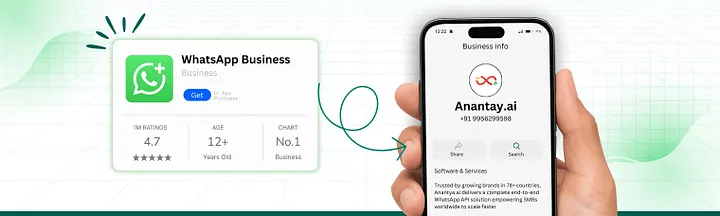
Before jumping into your WhatsApp Business account setup, keep these things ready:
A phone number (can be your personal one or a fresh one)
Your business name
Business address (not compulsory, but a good idea)
A short description of your business
A website or social media link (optional, but it saves you from answering the same questions again and again)
Should You Use Your Personal Number or a New One?
Go with your personal number if:
You’re running the business on your own
Customers already message you on your current WhatsApp
Go with a new number if:
You want to keep business chats separate from personal ones
Someone else on your team will be replying to customers
You’re thinking of moving to the WhatsApp API down the line
💡 Quick tip: If you’re planning to grow your business seriously, a separate number is the smarter choice. It keeps things organized and stops your personal chats from mixing with customer messages.
Steps to Set Up Your WhatsApp Business Account

Step 1 — Download the WhatsApp Business App
Go to your phone’s app store:
Google Play Store if you use Android
Apple App Store if you use an iPhone
Type “WhatsApp Business” in the search bar. Look for the green icon with a small “B” on it, and tap Install. The app doesn’t cost anything, and it works just like regular WhatsApp — just with extra tools built in for business owners.
Step 2 — Create Your Account and Verify Your Number
Once the app is installed:
Open WhatsApp Business.
Type in the phone number you plan to use.
Pick your country code.
Tap Next.
You’ll get a 6-digit code by SMS on that number.
Type in the code and move forward.
If that number was already being used on regular WhatsApp, you’ll be asked whether you want to switch over to WhatsApp Business. Tap Continue, and don’t worry — your old chats will move with you.
Didn’t get the verification code? Try these fixes:

Make sure your phone has proper network signal
Switch airplane mode on, then off again
Restart your phone
Use the “Call me instead” option
Check that the number isn’t logged in on another device
Clear the app’s cache if you’re on Android
Make sure your SMS inbox has room for new messages
Wait about 10 minutes before asking for another code
If you’ve tried everything and it still doesn’t work, WhatsApp might be limiting how many codes it sends. Give it 12 to 24 hours before trying again.
Step 3 — Build Your WhatsApp Business Profile
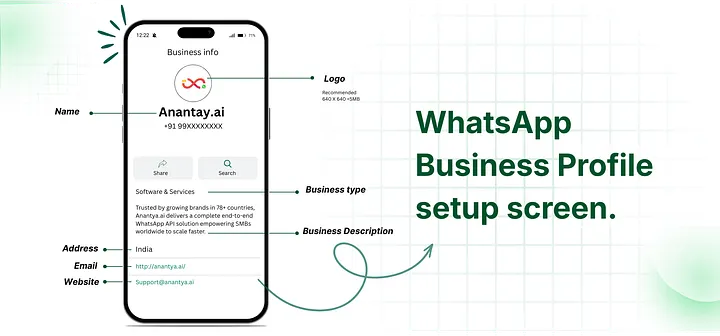
Think of your profile as your online business card — the better it looks, the more customers will trust you right away.
Head to Settings → Business Tools → Business Profile and fill in:
Your business name (note: you can’t change this later)
The category your business falls under
A short description or bio
Your business address
Links to your website, Instagram, or Facebook
Your business hours
Sample bios you can use:
Professional style:
For a store selling daily items: “Reliable store for everyday essentials with quick delivery.”
For a skincare or beauty business: “Quality skincare products made for your skin type.”
Service-based style:
“Helping brands grow through digital marketing.” (List your services below this)
“Home salon services — safe, convenient, and reasonably priced.”
Casual, local style:
“Fresh bakes every day — just like homemade.”
“Quick repairs done right — we pick up and drop off.”
Tip: Keep your bio short, clear, and focused on what value you offer.
Step 4 — Explore the Main Business Features
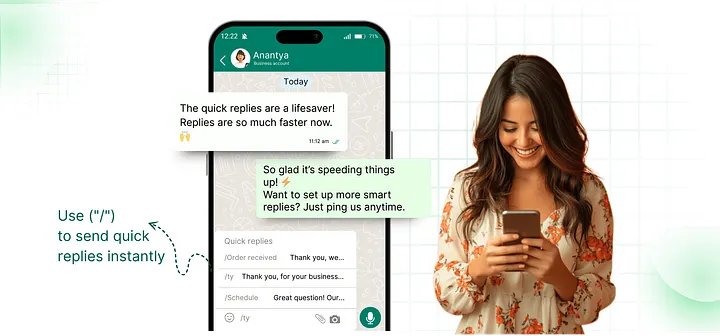
This is where WhatsApp Business really shines. Here are the tools worth setting up right away:
Quick Replies
Save your commonly used messages, such as:
“Hello! How can I assist you today?”
“Your order has been confirmed.”
Just type “/” in the chat, pick your saved message, and send — no retyping needed.
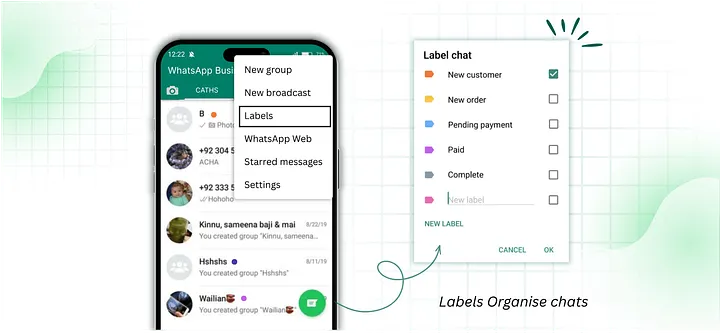
2. Labels
Sort your chats into groups such as:
New Customer
Payment Pending
Order Completed
VIP Customer
Regular Customer
This makes handling a large number of chats much easier and helps you respond to each customer the right way.
3. Catalog
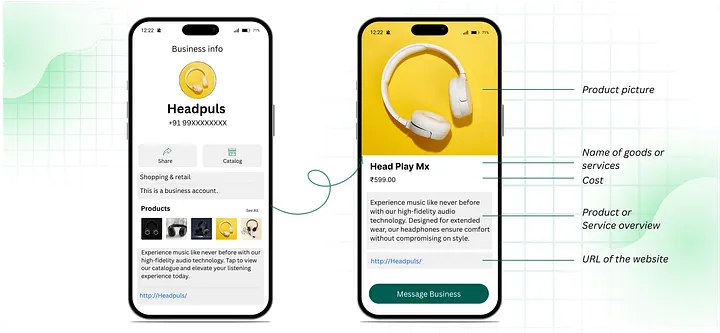
Add your products with pictures, prices, and short descriptions.
Some quick tips for your catalog:
Use clear, well-lit photos
Keep product titles short and simple
Mention size, weight, or variants where needed
Don’t use blurry, duplicate, or AI-generated images
Keep your stock information updated
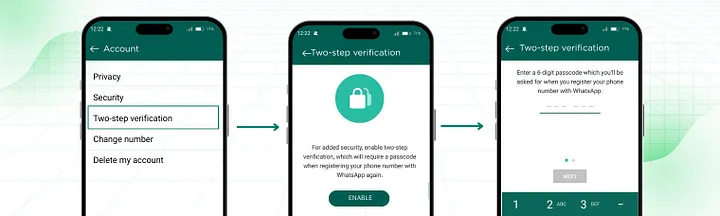
Bonus — Turn On Two-Step Verification
To keep your account safe:
Go to Settings → Account → Two-step verification
Choose a 6-digit PIN
Add a backup email address
This adds an extra layer of protection so your number can’t be misused.
Common Problems and How to Fix Them

Account got banned or flagged?
Don’t manually send messages in bulk
Avoid adding random or unknown people to groups
Stay away from spam-style content or shortcuts
If you think it was a mistake, use the in-app support option to appeal
If you regularly need to send bulk messages — like offers, updates, or new product announcements — to a large number of customers, it’s better to move to the WhatsApp Business API instead of doing it manually.
Not able to switch from your personal WhatsApp account? Back up your chats, remove the regular WhatsApp app, install WhatsApp Business, and log in again using the same number.
Catalog not visible to your customers?

Update the app to the latest version
Restart your phone
Check that your number hasn’t been blocked by that customer
Conclusion and Quick Checklist
Setting up a WhatsApp Business account isn’t complicated once you know the steps. From installing the app to verifying your number, building your profile, and adding your catalog — you now have everything you need to get started the right way.
But as your business grows, you may find that the free app isn’t enough — especially if you want automation, broadcast messages, chatbots, or multiple team members handling chats together. That’s the point where moving to the WhatsApp Business API makes sense.
This is where Anantya.ai can help. As an official Meta tech partner, Anantya.ai makes it easy for growing businesses to move from the basic WhatsApp Business app to the full WhatsApp Business API — unlocking automation, bulk messaging, and better customer support tools, all without the technical hassle. If you’re serious about scaling your customer communication, it’s worth checking out what Anantya.ai can offer.
Frequently Asked Questions
Q1: How do I create a WhatsApp Business account on my phone?
Download the WhatsApp Business app from the Play Store or App Store, enter your phone number, verify it using the OTP sent to you, and then set up your business profile with your name, category, and description.
Q2: How do I verify my WhatsApp Business account?
After entering your number and country code, WhatsApp sends a 6-digit code by SMS. Enter that code in the app to complete verification. If it doesn’t arrive, try the “Call me instead” option or restart your phone.
Q3: How do I add a catalog on WhatsApp Business?
Go to your Business Tools in Settings, select Catalog, and add your products with clear photos, prices, and short details. This lets customers browse your products right inside the chat.
Q4: Can I change my WhatsApp Business number later?
Yes. WhatsApp allows you to change your registered number through Settings → Account → Change Number, and it will move your chats and account details to the new number.
Q5: What should I do if I’m not getting the WhatsApp verification code?
Check your network connection, toggle airplane mode, restart your phone, and make sure your SMS inbox isn’t full. If the issue continues, wait a few hours before requesting the code again, as WhatsApp may be temporarily limiting new requests.
Comments
Log in or sign up to join the conversation.