

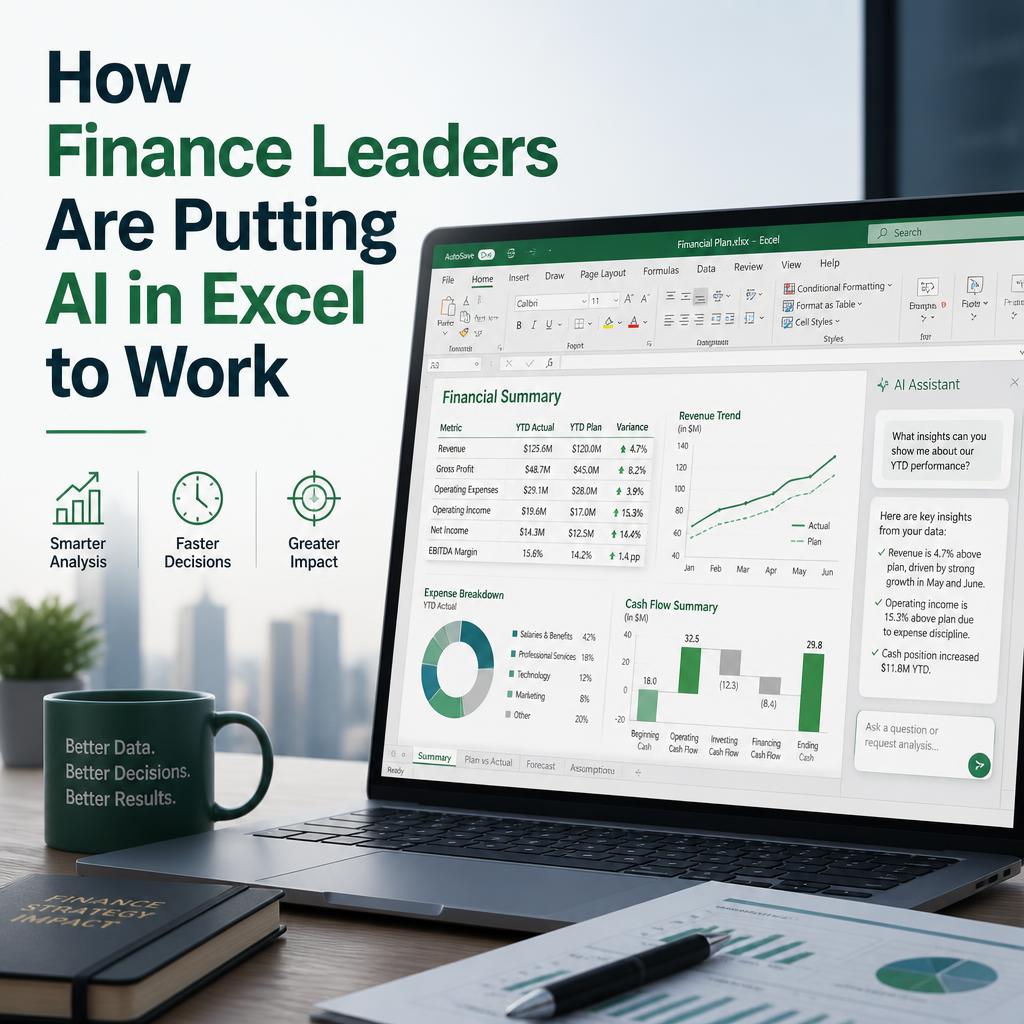
For decades, Excel has been the backbone of financial planning, close cycles, and board reporting. What's changed isn't the spreadsheet itself — it's what's happening inside it. AI in Excel has moved from a novelty add-on to a genuine productivity layer that CFOs and controllers can no longer afford to ignore. Between Copilot, Flash Fill, Analyze Data, and newer functions like COPILOT() that let you write natural-language prompts directly into a cell, finance teams have more automation firepower than ever before, without leaving the tool they already live in.
Why This Matters for Finance Leaders Specifically
Controllers and CFOs deal with a unique combination of pressures: tight month-end close deadlines, messy multi-source data, and a constant need for defensible, auditable numbers. Generic productivity hacks don't always translate well to finance. What does translate is AI that speeds up the repetitive, error-prone parts of the job — reconciliations, variance analysis, transaction categorization — while leaving judgment calls to the human.
That's the real promise of spreadsheet automation with AI: not replacing financial judgment, but clearing away the manual grind that eats into strategic time.
Practical AI Excel Tools Finance Teams Are Already Using
Flash Fill and pattern recognition. Flash Fill has quietly been one of Excel's smartest features for years. It recognizes a pattern in how you're reformatting data — splitting names, standardizing dates, cleaning account codes — and completes the rest automatically. For controllers cleaning up data pulled from disparate ERP exports, this alone can save hours each close cycle.
Analyze Data and Recommended PivotTables. Instead of manually building pivot views to spot trends, Excel's Analyze Data feature scans a dataset and suggests summaries, outliers, and visualizations. For variance analysis or budget-vs-actual reviews, this speeds up the first pass of insight-finding considerably.
Copilot for formula building and narrative summaries. Microsoft 365 Copilot can draft formulas from a plain-language description, explain what an unfamiliar formula does, and summarize a range of data into a written narrative — useful when translating raw numbers into commentary for a board deck or management report.
The COPILOT worksheet function. One of the more significant recent additions is the ability to call AI directly inside a cell using the COPILOL() function, feeding it context from other cells. Finance teams are using this to categorize transactions, tag expense types, or generate quick explanations without switching out of the spreadsheet. Pairing this with a LAMBDA function turns a one-off AI prompt into a reusable custom function that behaves like any other Excel formula — a meaningful step toward reusable spreadsheet intelligence.
Data extraction from images and the web. Excel can now pull structured data from a photo of a printed table or receipt, and link live data from web pages directly into a workbook. For finance teams dealing with vendor invoices, expense receipts, or market data feeds, this cuts out a surprising amount of manual re-keying.
Where This Is Headed
Microsoft's broader AI roadmap for Excel points toward agents — AI that can complete multi-step tasks across a workbook rather than responding to single prompts. For finance functions, that could eventually mean AI handling first-pass reconciliations or flagging anomalies across an entire ledger before a human reviews the output. It's not fully mature yet, but the direction is clear: Excel AI automation is shifting from assistive to semi-autonomous.
A Word of Caution
AI-generated formulas and summaries still need review. Finance is a field where a single misclassified transaction or wrong assumption in a formula can cascade into a reporting error. The tools above are accelerators, not replacements for controls, sign-offs, and audit trails. Treat AI output the way you'd treat a junior analyst's first draft: useful, fast, but not final until checked.
Getting Practical About Adoption
CFOs and controllers don't need to master every AI feature Excel offers. Start with the ones that solve your team's actual bottlenecks — data cleanup, variance summaries, or repetitive categorization — and build from there. Structured, hands-on training (rather than trial-and-error) tends to shorten the learning curve significantly, especially for teams juggling close deadlines with limited time to experiment.
AI in Excel isn't a future concept for finance teams anymore. It's already sitting inside the ribbon, waiting to take the busywork off your plate.
FAQs
1. Is AI in Excel safe to use for confidential financial data?
Microsoft 365 Copilot and built-in Excel AI features operate within your organization's existing Microsoft 365 security and compliance boundaries, so data isn't used to train public models by default. Still, controllers should confirm their organization's specific data governance settings before feeding sensitive figures into any AI feature.
2. Do I need Copilot licensing to use AI features in Excel?
No. Features like Flash Fill, Analyze Data, Recommended PivotTables, and Recommended Charts are built into standard Excel and require no separate subscription. Copilot-specific features, including the COPILOT() function, do require a Microsoft 365 Copilot license.
3. Can AI in Excel replace manual reconciliation work entirely?
Not yet. Current tools speed up categorization, pattern-matching, and first-pass analysis, but they don't carry the judgment or audit accountability a controller applies. Think of them as accelerating the process, not eliminating the review step.
4. What's the easiest AI feature for a finance team to start with?
Flash Fill and Analyze Data are the lowest-friction starting points since they require no setup, no prompting skill, and no license beyond standard Excel. They're a natural on-ramp before moving into Copilot-driven formula writing or custom LAMBDA functions.
Comments
Log in or sign up to join the conversation.