

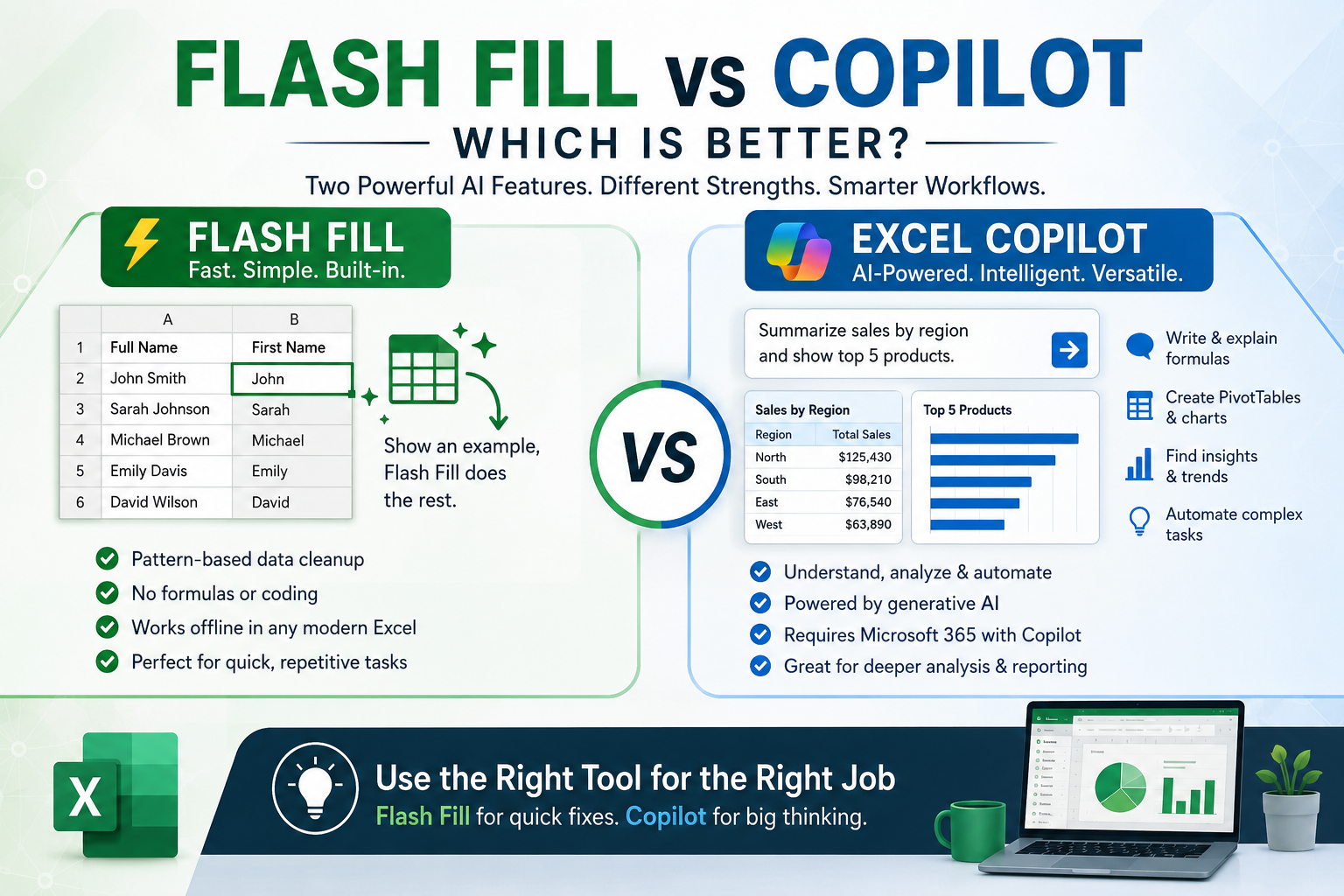
Excel has quietly been an AI-powered tool for over a decade, long before "AI" became a buzzword attached to every product update. Flash Fill, introduced back in Excel 2013, was one of the earliest signs of this — a feature that could look at a pattern in your data and finish the job for you. Fast forward to today, and Excel Copilot has taken that idea several steps further, using generative AI to write formulas, build PivotTables, and even explain your spreadsheet back to you in plain English. So which one actually deserves your attention: the quiet pattern-matcher or the flashy AI assistant? The honest answer is that they solve different problems, and understanding that difference will save you time either way.
What Flash Fill Actually Does
Flash Fill is Excel's pattern-recognition engine. Give it one or two examples of how you want data transformed — splitting a full name into first and last columns, extracting a domain from an email address, or reformatting a date — and Flash Fill detects the pattern and fills in the rest of the column automatically. No formulas, no VBA, no dragging fill handles.
It's fast, it's free (built into every modern version of Excel), and it works entirely offline. The catch is that Flash Fill is narrow by design. It's built for column-level data cleanup, not for building models, writing complex logic, or answering questions about your dataset. It also has no memory of context beyond the pattern you show it, so if your data is inconsistent, Flash Fill's guesses can go sideways quickly.
What Excel Copilot Brings to the Table
Excel Copilot is a different animal altogether. Powered by generative AI, Copilot in Excel can write and explain formulas from a plain-language description, generate PivotTables and charts by answering natural-language questions about your data, highlight trends, and even flag outliers you might have missed. Instead of showing an example and hoping the software infers the pattern, you can simply ask Copilot what you want — "summarize sales by region" or "explain what this formula does" — and it responds with an actual answer, not just a filled column.
This makes Copilot far more versatile for tasks like:
Deconstructing unfamiliar or legacy formulas
Automating repetitive multi-step tasks
Building dynamic array formulas and reports
Turning a written description into a working calculation
The tradeoff is that Copilot requires a Microsoft 365 subscription with Copilot access, an internet connection, and a bit of trust in AI-generated output, which — like any generative AI tool — can occasionally be wrong and should be double-checked.
Head-to-Head: Where Each One Wins
If your task is simple, repetitive, pattern-based data cleanup — separating names, standardizing phone numbers, extracting substrings — Flash Fill wins on speed and simplicity. It requires zero setup, works in any Excel version from 2013 onward, and doesn't need you to explain anything. You just show it an example.
If your task involves analysis, formula creation, or anything that benefits from natural-language reasoning, Excel Copilot is the clear winner. It can generate a PivotTable from a question, explain a gnarly nested formula, or even suggest a chart type based on your data's shape — capabilities that go well beyond what pattern-matching can offer.
It's also worth remembering that Flash Fill and Copilot aren't mutually exclusive. Many experienced Excel users, including trainers who specialize in AI-powered Excel workflows, treat them as complementary tools: Flash Fill for quick, low-stakes formatting, and Copilot for higher-level automation and analysis. Other native AI features — like Analyze Data, Power Query's Column From Example, and the ability to extract data from pictures or PDFs — round out this AI toolkit even further, each suited to a slightly different job.
Which Should You Learn First?
For beginners, Flash Fill is the more approachable starting point. It's intuitive, immediate, and doesn't require prompt-writing skills. Once you're comfortable navigating Excel and want to move into automation, formula-building, and data storytelling, Excel Copilot becomes the natural next step — especially for accountants, financial analysts, and anyone regularly working with large or messy datasets.
For professionals looking to go deeper, there are live and recorded training sessions covering both angles — from foundational features like Flash Fill and the Forecast tool, to advanced Copilot-driven automation. Sessions like these often walk through practical, real-world use cases: writing formulas with ChatGPT-style prompts, using Column From Example in Power Query, and understanding the newer TAKE and DROP functions for dynamic arrays.
The Verdict
Neither tool is objectively "better" — they're built for different moments in your workflow. Flash Fill is the fast, no-fuss fix for repetitive formatting tasks. Excel Copilot is the AI-powered analyst that can write formulas, generate insights, and automate multi-step processes on request. The smartest approach isn't choosing one over the other — it's knowing which one to reach for depending on whether you need a quick pattern fixed or a genuine thinking partner inside your spreadsheet.
FAQs
1. Is Excel Copilot the same as Flash Fill?
No. Flash Fill is a rule-based pattern-matching feature that fills in data based on examples you provide, while Excel Copilot is a generative AI assistant that can write formulas, build reports, and answer natural-language questions about your data.
2. Do I need a Microsoft 365 subscription to use Excel Copilot?
Yes, Excel Copilot requires an eligible Microsoft 365 subscription with Copilot enabled, along with an internet connection, whereas Flash Fill works offline in any modern desktop version of Excel.
3. Can Flash Fill handle complex data transformations like Copilot?
Not reliably. Flash Fill is designed for simple, column-level pattern transformations, such as splitting or reformatting text, while more complex analysis, formula generation, or automation is better handled by Copilot or Power Query's Column From Example feature.
4. Should I use Flash Fill or Copilot for cleaning messy data?
It depends on the complexity: use Flash Fill for quick, consistent pattern-based fixes, and switch to Copilot or Power Query when the data is inconsistent, requires logic, or needs explanation alongside the fix.
Comments
Log in or sign up to join the conversation.