

Every accounting team knows the monthly grind: pull the general ledger, rebuild the report, double-check the formulas, and hope nothing breaks. Even with all the modern tools available, Excel remains the backbone of corporate finance. The difference between a team that struggles with this cycle and one that breezes through it usually comes down to one thing — how well their financial models in Excel are built in the first place.
As we move into 2026, the expectations around speed and accuracy in financial reporting keep climbing, while the tools available inside Excel keep getting more capable. Here's a look at the techniques that are shaping how finance professionals build smarter, more reliable spreadsheets this year.
Start With Reusable Templates, Not Blank Sheets
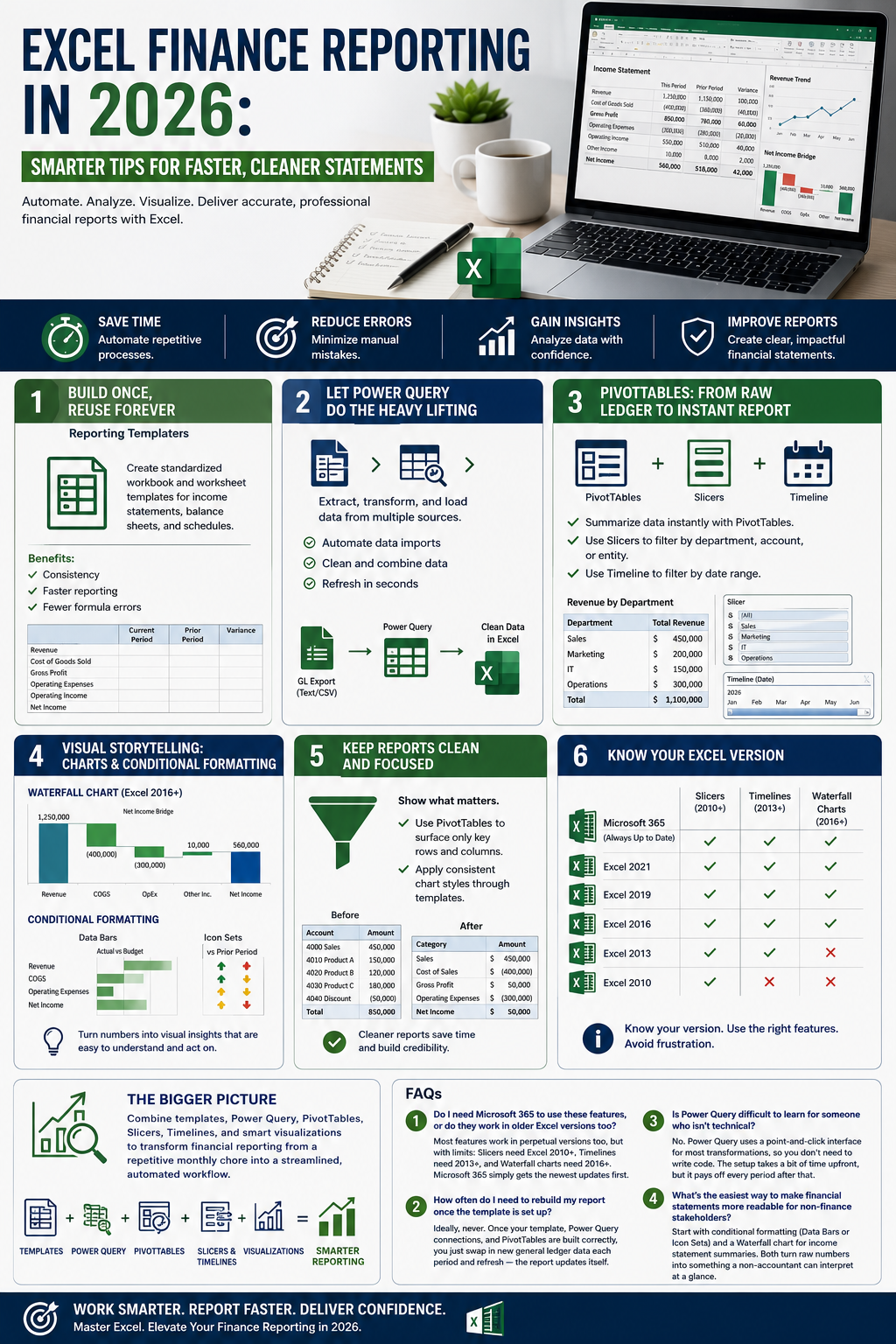
One of the biggest time-wasters in financial reporting is rebuilding the same structure every single period. A well-designed template — at both the workbook and worksheet level — turns each new reporting cycle into a simple data swap rather than a rebuild from scratch. The trick is designing that template once, with consistent formatting, named ranges, and formulas that won't break when new rows of data come in. Once that foundation exists, your financial models in Excel become far less prone to the copy-paste errors that creep in under deadline pressure.
Let Power Query Do the Heavy Lifting
Pulling data from accounting systems, text files, or other sources used to mean manual exports and reformatting. Power Query changes that by letting you extract, transform, and load data directly into your model with repeatable steps. Once you've set up the transformation once, refreshing it next month is as simple as clicking a button. This is one of the most underused features in everyday financial models in Excel, yet it's often the single biggest time-saver available.
Build Reports From PivotTables, Then Filter With Slicers and Timelines
Instead of manually summarizing general ledger data, dropping it straight into a blank PivotTable and adding rows can generate an instant financial report. From there, Slicers make it easy to filter by department, account type, or category, while the Timeline feature narrows results to specific date ranges. Combined, these tools let you reduce a sprawling PivotTable down to a clean, presentation-ready report without retyping a single number. For finance teams producing recurring statements, this combination does more to cut repetitive work than almost any other Excel feature.
Make the Numbers Easier to Read at a Glance
Raw numbers in a spreadsheet only tell part of the story. Data Bars conditional formatting turns plain number lists into something visually scannable, helping reviewers spot outliers immediately. Icon Sets add another layer of context — useful for quickly flagging variances or performance against budget. These small visual touches matter more than they might seem; in a board meeting or audit review, a model that's easy to read builds more confidence than one that's technically correct but visually flat.
Use Waterfall Charts for Income Statement Storytelling
Income statements are notoriously hard to visualize because of all the additions and subtractions between revenue and net income. Waterfall charts (available from Excel 2016 onward) solve this by showing exactly how each line item builds toward the final number. Pairing VLOOKUP and MATCH formulas to pull and summarize the right figures makes it possible to feed a waterfall chart automatically, rather than rebuilding the data range every reporting period. For CFOs and controllers presenting results to stakeholders, this kind of visualization often communicates more in five seconds than a table of numbers does in five minutes.
Keep Style Consistent With Chart Templates
If your reports include multiple charts, applying a saved chart template keeps colors, fonts, and formatting consistent across every report you generate — another small step that adds polish without extra manual work.
Know Your Version
Not every feature is available everywhere. Microsoft 365 receives frequent updates, while perpetual versions like Excel 2021, 2019, 2016, and 2013 have fixed feature sets. Slicers, for example, require Excel 2010 or later, and Timelines need Excel 2013 or later. Knowing which version your organization runs avoids the frustration of building a model around a feature your team can't actually use.
The Bigger Picture
None of these techniques are revolutionary on their own. What changes the game is combining them — templates for structure, Power Query for data refresh, PivotTables for summarization, and visual formatting for clarity. Together, they turn financial models in Excel from a recurring chore into a system that mostly runs itself, freeing up time for the analysis that actually adds value.
FAQs
1. What's the easiest way to make financial models in Excel less repetitive each month?
Build a reusable template once — with consistent formatting and formulas — so each new reporting cycle just means swapping in fresh data instead of rebuilding from scratch.
2. Do I need Microsoft 365 to use these Excel reporting features?
Not entirely. Slicers work from Excel 2010 onward and Timelines from Excel 2013 onward, but Microsoft 365 gets continuous updates while perpetual versions (2016, 2019, 2021) have fixed features, so some newer tools may not be available on older licenses.
3. How do PivotTables help with financial reporting?
Dropping general ledger data into a blank PivotTable and adding rows generates an instant report, which can then be filtered and cleaned up using Slicers and Timelines for a polished, presentation-ready view.
4. Why use Waterfall charts for income statements?
They visually show how each line item adds to or subtracts from revenue to arrive at net income, making it much easier for stakeholders to follow the story than a plain table of numbers.
Comments
Log in or sign up to join the conversation.