
Importing a large CSV file into a database, CRM, analytics platform, or business application sounds simple until errors start appearing. Missing values, duplicate records, incorrect formatting, and unnecessary columns can cause failed imports or inaccurate results.
Before uploading any large dataset, it is important to clean large CSV files properly. A clean CSV file improves data accuracy, reduces processing time, and prevents problems during migration or analysis.
Whether you are working with customer records, sales data, email lists, or business reports, following the right cleaning process can save hours of troubleshooting.
Why Do You Need to Clean Large CSV Files Before Import?
Large CSV files often collect data from multiple sources, and each source may follow different formatting rules. Over time, this creates inconsistencies that affect the quality of your data.
Common issues found in large CSV files include:
Duplicate rows containing the same information
Empty fields or missing values
Incorrect date and number formats
Extra spaces in text fields
Unnecessary columns increasing file size
Special characters causing import failures
Inconsistent capitalization in names or categories
For example, a customer database may contain the same person multiple times with slightly different spellings. If this data is imported without cleaning, it can create duplicate accounts and inaccurate reports.
Cleaning the file before import ensures that your system receives organized and reliable information.
1. Remove Duplicate Records
Duplicate data is one of the most common problems in large CSV files. When multiple entries represent the same record, they increase file size and reduce data accuracy.
For example:
Name | |
John Smith | |
John Smith |
These two rows contain identical information and should usually be reduced to a single record.
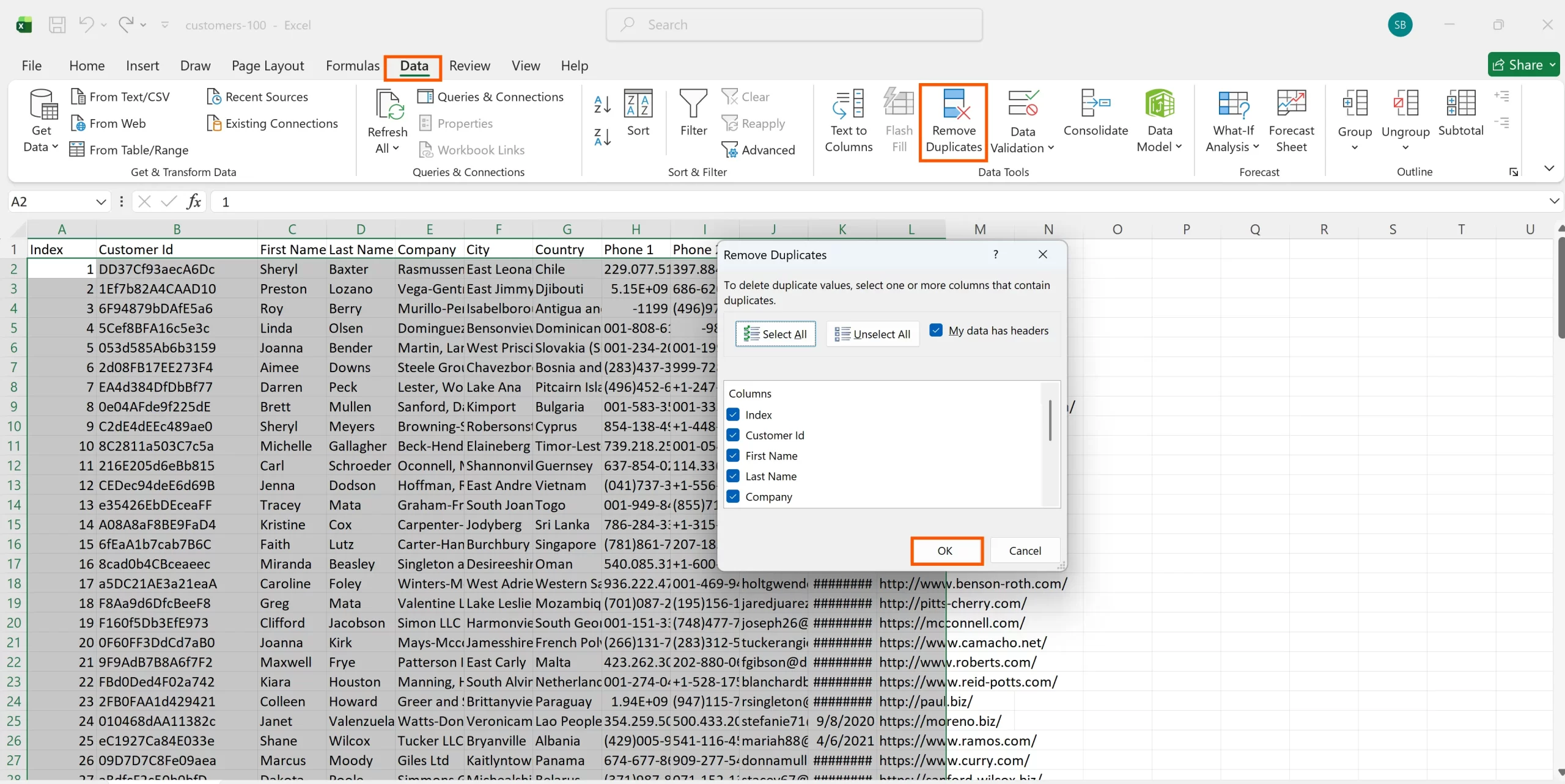
Before removing duplicates, decide which columns should be compared. In some cases, matching the email address is enough, while other situations may require comparing multiple fields such as name, phone number, and company.
For small files, spreadsheet applications can handle duplicate removal. However, very large CSV files may become slow or freeze during processing because spreadsheet tools have limitations with huge datasets.
2. Remove Unnecessary Columns and Data
Large CSV files often contain information that is not required for the final import. Extra columns increase processing time and make the dataset harder to manage.
Review your CSV file and remove:
Unused fields
Temporary calculation columns
Internal notes
Empty columns
Duplicate information
Keeping only required data makes the import process faster and reduces the chance of mapping errors.
For example, if you are importing customer contacts into a CRM, you may only need:
Name
Email address
Phone number
Company name
There is no need to include unrelated internal fields that the CRM does not use.
3. Fix Missing or Incorrect Values
Missing values can create problems when importing CSV files into applications that require specific fields.
Check important columns for:
Blank email addresses
Missing customer IDs
Empty product codes
Incorrect categories
Instead of leaving important fields empty, decide how they should be handled. You can replace missing values with a standard entry like “Unknown” or remove incomplete records if they are not useful.
Also check for incorrect data formats. A date column containing different formats like:
01/05/2026
May 1, 2026
2026-05-01
may confuse the importing system. Convert all values into one consistent format before importing.
4. Clean Extra Spaces and Formatting Issues
Invisible spaces are a small problem that can create major issues.
For example:
Although they look similar, many systems treat them as different values.
Remove:
Leading spaces
Trailing spaces
Extra spaces between words
Unwanted line breaks
Also maintain consistent formatting for:
Phone numbers
Email addresses
Names
Country codes
A properly formatted CSV file helps applications read the information correctly.
5. Check Character Encoding
Character encoding problems can make imported CSV data appear corrupted.
You may notice:
Strange symbols replacing letters
Incorrect display of special characters
Broken names or addresses
Most modern systems support UTF-8 encoding, which works well for multilingual data.
Before importing, verify that your CSV file uses the correct encoding format. This is especially important when your data contains international names, addresses, or symbols.
6. Split Extremely Large CSV Files When Needed
Very large CSV files can become difficult to open and process. If a file contains millions of rows, splitting it into smaller parts may improve performance.
For example, instead of importing one 5 GB CSV file, you can divide it into multiple smaller files based on:
Number of rows
Date ranges
Categories
Departments
However, make sure the column structure remains identical in every split file to avoid import issues.
7. Use Proper Tools for Large CSV Cleaning
Manual cleaning works for small datasets, but handling millions of rows manually is inefficient and increases the risk of mistakes.
Dedicated CSV cleaning tools can help automate tasks such as duplicate removal, comparison, and large file processing.
For users working with very large CSV datasets, the SysTools CSV Duplicate Remover Tool can help identify and remove duplicate records from CSV files without relying on spreadsheet applications. It supports large CSV files and allows users to compare selected columns to find duplicate entries accurately.
Using a specialized tool can be useful when spreadsheet software becomes slow or unable to handle large datasets efficiently.
8. Always Create a Backup Before Cleaning
Before making changes to a large CSV file, create a backup copy.
Data cleaning operations such as deleting duplicates or removing columns cannot always be reversed. Keeping the original file allows you to restore the data if something goes wrong.
A good practice is:
Save the original CSV file separately
Create a copy for cleaning
Review the cleaned output before importing
This prevents accidental data loss.
Final Thoughts
Large CSV files require proper preparation before they are imported into any system. Problems like duplicate records, inconsistent formatting, missing values, and unnecessary data can affect accuracy and create import failures.
The best approach is to review your CSV structure, remove unwanted information, fix formatting issues, and verify the final file before uploading it.
By following these cleaning steps, you can clean large CSV files more efficiently and ensure that your data remains accurate, organized, and ready for use.
Comments
Log in or sign up to join the conversation.